Manually (re)import Harvest dashboards
Summary
This KB explains how to create a Grafana service account and token, then use that token with Harvest CLI ./bin/grafana import to import dashboards. This is useful when dashboard import needs to be run manually.
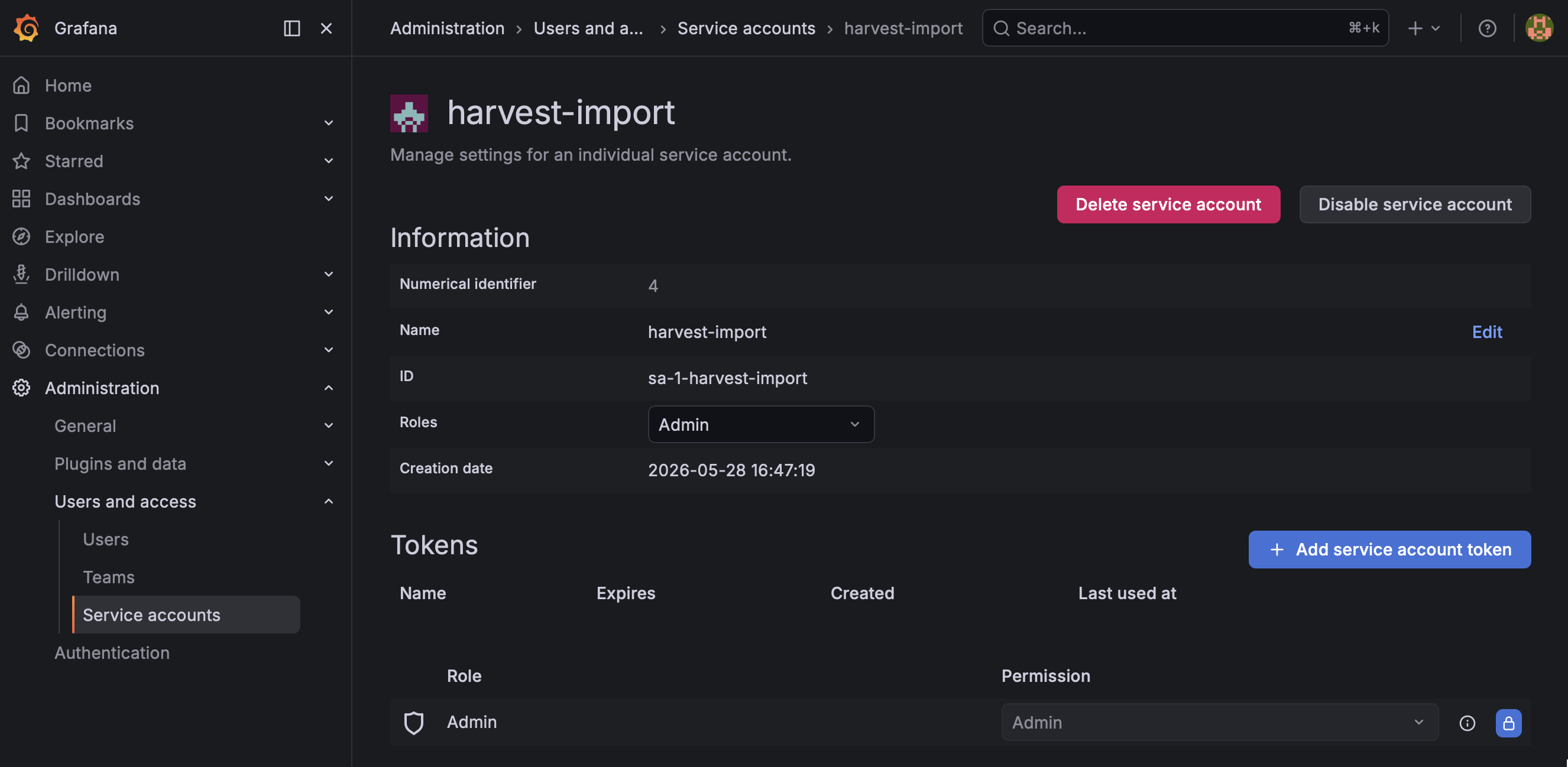
Step 1: Create a service account in Grafana
- Open Grafana as admin.
- Go to Administration -> Users and access -> Service accounts.
- Select Add service account.
- Set:
- Name:
harvest-import- Role:Admin(required for dashboard and folder import operations) - Save the service account.
Step 2: Create and copy the token
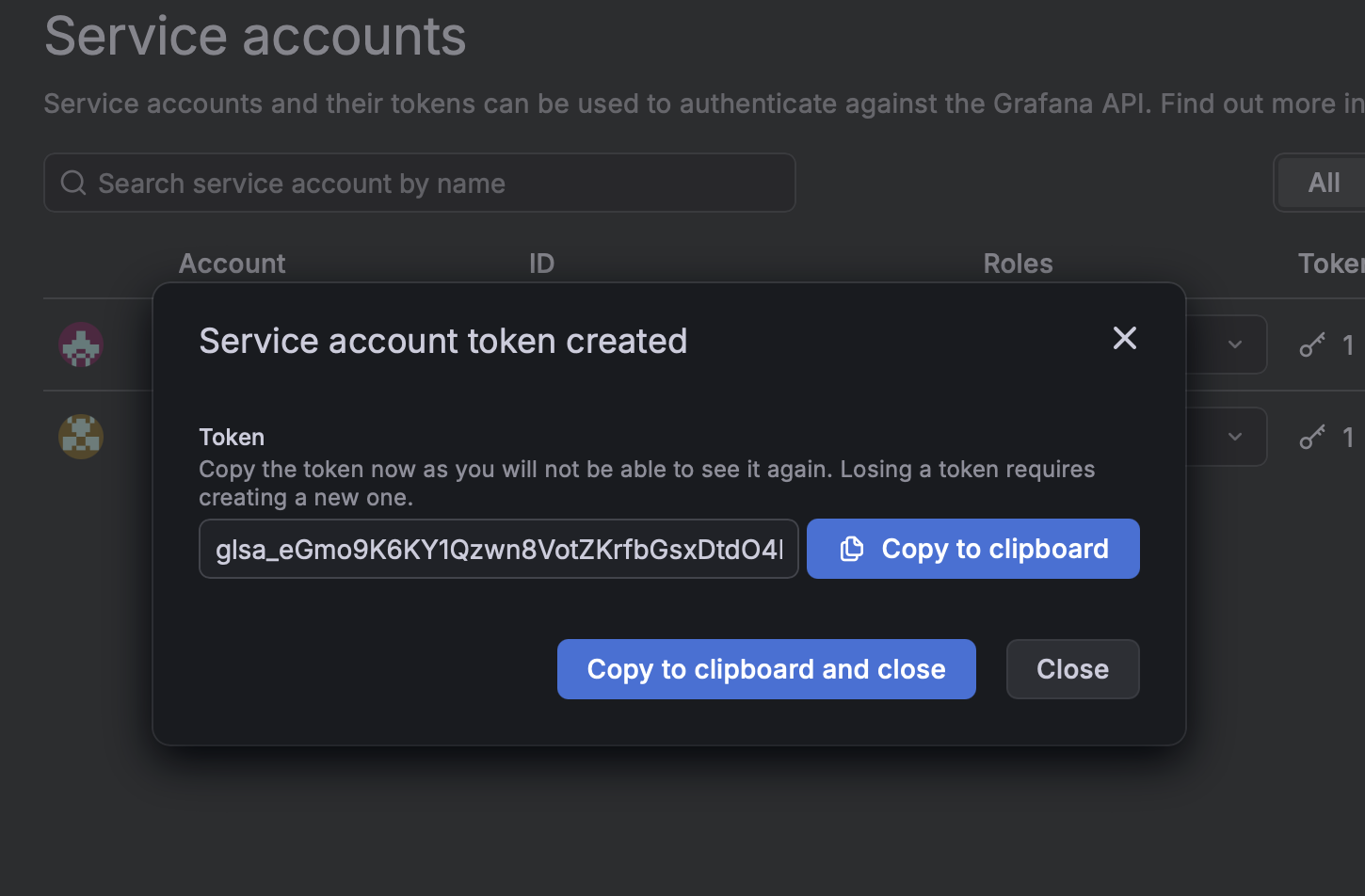
- Open the
harvest-importservice account. - Go to the Tokens section.
- Select Add service account token.
- Set token name, for example
harvest-import-cli. - Create the token and copy it immediately.
Step 3: Run Harvest dashboard import
From the Harvest installation directory:
admin@localhost $ cd /data/packages/harvest
admin@localhost /data/packages/harvest $ ./bin/grafana import
When prompted:
- Paste the token from Step 2 (
glsa_...). - Choose whether to save it locally. (
No)
Example interactive output:
admin@localhost $ cd /data/packages/harvest
admin@localhost /data/packages/harvest $ ./bin/grafana import
enter API token: <grafana_token>
save API key for later use? [Y/n]: n
connected to Grafana server (version: 13.0.1+security-01)
[...]
Imported 1 dashboards to [Harvest-main-ASAr2] from [grafana/dashboards/asar2]